UTM Parameters in Google Ads: A Comprehensive Guide to Professional Tracking
You run Google Ads, you open GA4, and the numbers rarely line up with where you know your clicks came from. UTM parameters fix that. These small tags travel inside your ad URLs and tell every analytics and CRM tool exactly which campaign, keyword, and creative earned each click.
This guide explains what Google UTMs are, how they work alongside Google’s own auto-tagging, and how to add them properly using a tracking template with ValueTrack macros. By the end, you can build a correct Google Ads tracking template and trust the attribution it produces.
Key Takeaways
- UTM parameters are five URL tags that record the source, medium, campaign, keyword, and creative behind every click.
- Auto-tagging (GCLID) feeds GA4 automatically but only works inside Google’s ecosystem; UTMs travel in the URL and are read by any tool that parses query strings.
- The best setup combines auto-tagging for GA4 with an account-level tracking template using ValueTrack macros for everything outside Google.
- ValueTrack macros are placeholders in curly brackets that Google replaces at click time with real values like the keyword or campaign ID.
- Consistency matters most: one value per concept keeps GA4 from splitting your paid traffic across multiple channel rows.
What Are UTM Parameters?
UTM (Urchin Tracking Module) parameters are text tags you append to a URL to track where traffic comes from. The name traces back to Urchin, the analytics company Google acquired in 2005 to build what became Google Analytics, which is why Analytics reads these tags natively.
They sit after a question mark in the URL and are separated by ampersands:
https://velocityppc.com/spring-sale?utm_source=google&utm_medium=cpc&utm_campaign=spring_sale&utm_term=ppc_agency&utm_content=text_ad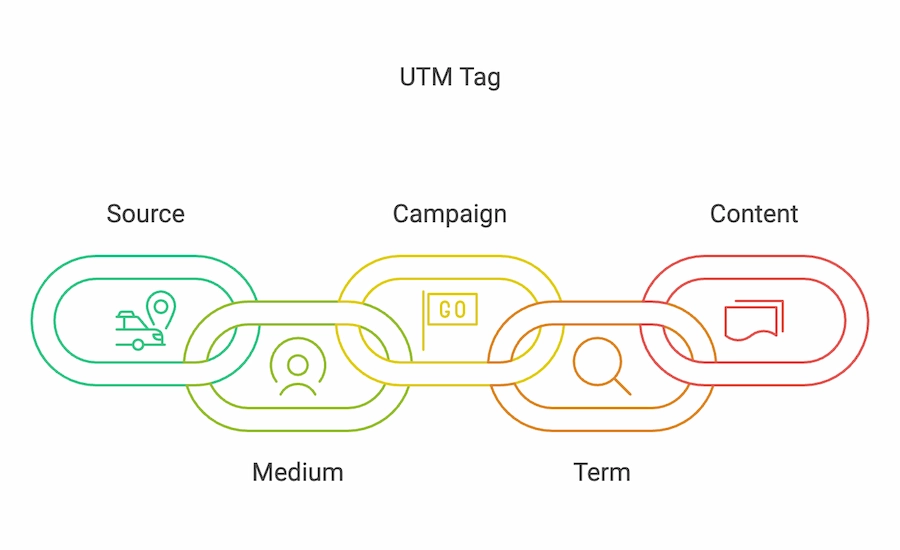
Each parameter answers a specific question for a Google Ads advertiser. Together they reveal which campaigns drive traffic and which keywords generate conversions, so you can shift budget toward what actually works.
| Parameter | What It Identifies | Required or Optional | Google Ads Example |
|---|---|---|---|
| utm_source | Where the traffic came from | Required | |
| utm_medium | How it arrived (channel type) | Required | cpc |
| utm_campaign | Which campaign drove it | Required | spring_sale |
| utm_term | Which keyword triggered the ad | Optional | ppc_agency |
| utm_content | Which creative or ad variant | Optional | text_ad |
Why UTM Parameters Matter for Google Ads Tracking
Google Ads includes built-in auto-tagging that appends a GCLID (Google Click Identifier) to every ad click. That GCLID passes rich campaign data into GA4 automatically, with no manual tagging required.
The limitation is scope. GCLID only works inside Google’s ecosystem, so your CRM, a BI dashboard, or a third-party attribution tool cannot decode it. UTMs travel in the plain URL, so anything that parses query strings can read them.
That difference is why UTMs still matter, even with auto-tagging on:
- CRM context: UTM values can land on a lead record, so sales sees which campaign produced each inquiry.
- Resilience: GCLID can be stripped in some email clients and private-browsing contexts; UTMs survive.
- Custom structure: You control the naming, so tags match your own reporting language.
Clean attribution is the foundation of measuring cost per lead and ROAS, not an optional extra. If the data is messy, every downstream decision inherits that mess.
GCLID Auto-Tagging vs Manual UTMs vs Tracking Templates
You have three ways to tag Google Ads traffic, and choosing the right mix removes most reporting headaches.
| Method | How It Works | Best For | Key Limitation |
|---|---|---|---|
| Auto-tagging (GCLID) | Google appends a unique GCLID to each click automatically | Rich GA4 and Google reporting with zero setup | Google-only; unreadable outside the ecosystem |
| Manual UTM tagging | You type UTM values onto each Final URL by hand | Testing a small handful of ads | Slow, error-prone, hard to keep consistent at scale |
| Tracking template / URL suffix with ValueTrack | Google fills dynamic macros into UTMs at click time | Consistent, universal tags across every campaign | Requires initial setup and validation |
The current best practice is to run auto-tagging for GA4 plus a tracking template with ValueTrack parameters for everything outside Google. Reserve manual per-URL tagging for quick tests on a few ads.
Use a Final URL suffix rather than a legacy redirect-based tracking template. A suffix does not add a redirect and preserves parallel tracking, which keeps your landing pages loading fast.
How to Add UTM Parameters to Google Ads
The efficient approach is to set your tags once at the account level so every campaign inherits consistent UTMs automatically, rather than tagging each URL by hand.
Set a Tracking Template With ValueTrack Parameters
In Google Ads, go to Settings, then Account settings, then Tracking, and add a Final URL suffix. You can also set it at the campaign or ad group level when different values are genuinely needed.
Paste a template built with {lpurl} and ValueTrack macros:
{lpurl}?utm_source=google&utm_medium=cpc&utm_campaign={campaignid}&utm_term={keyword}&utm_content={creative}ValueTrack parameters are placeholders in curly brackets that Google swaps for real values at click time, such as the keyword, campaign ID, or creative ID. Note that ValueTrack parameters do not use a leading underscore, while UTM keys always do. Using dynamic placeholders like {keyword} saves time and improves accuracy, since you never retype values. Google’s ValueTrack parameters guide lists every available macro.
A few gaps are worth planning around:
- Performance Max and Shopping: {keyword} returns empty because these campaign types have no keywords.
- Shopping product tracking: Use {product_id} to enable product-level attribution.
For manual tagging on a single ad, append the parameters directly to the Final URL instead, for example, a spring_sale campaign URL with each UTM added by hand.
Test and Validate
Use the built-in Test button, or the URL test tool in Google Ads, which shows the full served URL with ValueTrack values substituted. This is the fastest way to catch a broken tag before it goes live.
Confirm two things: that the tagged URL loads the correct landing page, and that the data appears in GA4 under the campaign reporting views. You can apply the same UTM structure to non-Google channels like LinkedIn and Meta so all paid traffic reports consistently. Google’s campaign URL documentation covers the naming rules Analytics expects.
UTM Best Practices for Clean Reporting
Pick one value per concept and stick to it. Always use utm_medium=cpc rather than mixing cpc and ppc, or GA4 will split your paid traffic across separate channel rows.
- Set a naming convention before launch and document it, so no one improvises campaign or medium names.
- Never add UTMs to internal site links, because that overwrites the original source and corrupts attribution.
- Use lowercase consistently, since UTM values are case-sensitive and CPC and cpc count as two channels.
- Review UTM data regularly in Google Analytics to spot fragmentation early and act on what the campaigns reveal.
What To Do Next
Turn on auto-tagging for GA4, then add one account-level Final URL suffix with ValueTrack macros so every campaign reports consistently from day one. Build your naming convention first, drop the template into Settings, and run it through the Test button before you spend another dollar.
If attribution is the piece holding your account back, the team at Velocity PPC builds this tracking structure into every Google Ads engagement so cost per lead and ROAS stay measurable.

FAQs
UTM parameters are URL tags that tell analytics tools where a click came from and what drove it. There are five: utm_source, utm_medium, utm_campaign, utm_term, and utm_content. The first three are typically required, while utm_term and utm_content are optional but useful for keyword and creative detail.
Set a tracking template or Final URL suffix at the account level under Settings, then Account settings, then Tracking. Use ValueTrack macros so Google fills in values automatically, for example {lpurl}?utm_source=google&utm_medium=cpc&utm_campaign={campaignid}. Then run the URL through the Test button to confirm it works before launching.
In most cases, yes. Auto-tagging generates a GCLID that only Google’s ecosystem can read, so your CRM and third-party tools stay blind to it. UTMs travel in the plain URL, feeding campaign context into those non-Google systems.
GCLID is an auto-generated identifier that only works inside Google products like GA4. UTMs are tags you define yourself, and any tool that reads query strings can parse them. Use both together for complete coverage.
ValueTrack parameters are dynamic placeholders written in curly brackets, such as {keyword} or {campaignid}, that Google replaces with real values at click time. They let one tracking template populate accurate UTMs across every campaign without manual entry. Unlike UTM keys, they do not use a leading underscore.
Set them at the account level for consistency, so every campaign inherits the same structure automatically. Override at the campaign or ad group level only when a value genuinely needs to differ. This keeps your reporting clean while allowing exceptions where they matter.
This usually happens when utm_medium values are inconsistent, such as mixing cpc and ppc, or cpc and CPC. GA4 treats each spelling as a separate channel. Standardize on one lowercase value and enforce it with a documented naming convention.
Yes, though {keyword} returns empty because these campaign types have no keywords. For Shopping campaigns, use {product_id} to capture product-level tracking instead. The other UTM parameters still populate normally.